How do you stay in touch when living on the road full-time in an RV? What kind of internet access is best? Which phone plans make the most sense for a full-time RVer? These are some of the questions that RVers face, and there is a huge array of possible solutions available for every need and lifestyle.
Note: This post was updated in February 2018 to report our experiences with the WeBoost Drive 4G-X RV cellular signal booster. Click HERE to skip to that section.

Mobile communications techniques differ a fair bit among RVers. We have a simple method with one device.
The gurus on topic of mobile internet access are unquestionably Chris Dunphy and Cherie Ve Ard of Technomadia. They have written a fantastic book about the internet for RVers and also created an online community dedicated to mobile internet issues (more about those excellent resources here).
Because we have taken an unconventional route with our own communications solution (as we have done with everything in our traveling lifestyle since we started 10 years ago), I thought a few notes here about what we do might be useful.
For starters, we don’t have a phone.
What, No Phone?! How Can You DO THAT?!
After several decades of being “on call” in our professions, bound to our customers by electronic leashes, we ditched our cell phones when we started traveling full-time in 2007. At first, this was a money-savings tactic, but since then it is in many ways a small act of defiance against a world that is increasingly held in electronic bondage.
We have managed just fine without a phone all these years. We’ve been able to meet up with friends at appointed hours, find our way to remote and stunning locations without a GPS-enabled electronic map. We’ve even bought and sold large assets like our sailboat and truck, all without a phone. Lower on this page there are lots of details explaining how we make and receive phone calls.
If you are looking to shave a few dollars off your full-time RVing budget, or if you are just curious how this is possible, here’s what we do.
Internet Access – Verizon MiFi Jetpack
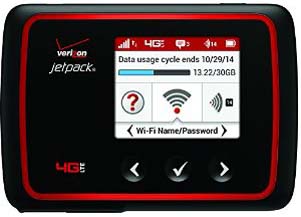
Verizon MiFi Jetpack 6620L
We have a Verizon MiFi 6620L Jetpack hotspot that is the basis of all our communications. It operates on the Verizon cell phone towers, has a cell phone number itself, provides password protected WiFi inside and near the rig, and can theoretically support 15 devices connected to the internet.
A little back-story on — For three years we had a Verizon MiFi 4620 jetpack, but in October, 2014, its tiny charging receptacle broke and it could no longer get charged. Mark tried to nurse it back to life by soldering its lifeless receptacle to the charger permanently, but the problem was internal and it was dead.

We tried soldering wires from the MiFi to its charger, but it still wouldn’t charge.
The old 4620 Jetpack always had problems charging and holding a charge. The MiFi 6620L Jetpack can theoretically run on battery power for 20 hours and support up to 15 simultaneous connections. It can definitely run longer than the old one, but 20 hours is an overstatement. 6 to 7 hours with two users is more like it in our household.
There is a new 7730L Jetpack from Novatel that has a theoretical battery life of 24 hours. The WiFi signal strength it broadcasts is stronger, so you can connect to it from further away. However, the signal strength coming from the cell tower is the same in both units. We haven’t upgraded yet.
Our old 6620L Jetpack has the annoying habit of falling asleep when nothing is happening between us and the internet. For us to resume using the internet after a period of doing nothing, we have to wake it up manually by tapping on its power button. Then the computer has to reconnect to the Jetpack as well.
The New Verizon Plan
As of July, 2017, our MiFi Jetpack is the single device on a 30 GB talk/text/data “New Verizon Plan.”
A few months prior to this switch, Verizon began offering its “New Verizon Plan” and pushing an “Unlimited” plan for data. The “Unlimited” plan sounded great, but it has limitations.
After many hours on the phone with Verizon, I learned that if you have a Smartphone or Tablet, the new Unlimited plan runs at 4G speeds for the first 22GB each month when you use the internet based apps on the phone or tablet. After that, there will be a 1-2 second delay when you first connect to the nearest cell tower, but once connected, the speed will still be a nifty 4G.
HOWEVER — and this was critical for us — if you are using your Smartphone or Tablet as a mobile hotspot, or if you are using a Jetpack, the Unlimited plan will run at 4G speeds for only the first 10 GB of each month. After that it will drop to 3G speeds.
This was not properly explained to me when I talked to Verizon reps the first few times, so we tried the Unlimited plan for a month. For us, it was unusable after it dropped to 3G. With today’s bandwidth intensive websites, 3G is painfully slow. At times during the one month we had the Unlimited plan, we had to walk away and do something else as we waited for something basic like the Google search page to come up.
Yesterday, after a few more hours on the phone with several Verizon reps, we learned that there are high GB plans available that remain at 4G speeds all month long. The question for us was: which one? Not all of these “New Verizon Plans” are advertised on the website in obvious places, and not all the salespeople know the various options either.
We use anywhere from 20 to 30 GB of data a month these day, so we wanted a 30GB plan. The first plan that was offered to me was a 30GB data-only plan for $185 per month.

Verizon’s first offer for a 30 GB plan that would run at 4G all month long was the “New Verizon Plan” that is Data Only and is intended for Jetpacks and phones/tablets operated as Mobile Hotspots
This was crazy expensive and I complained loudly.
Eventually, I was transferred to a rep who offered me a 30 GB talk/text/data plan for $135 per month. That was more like it! I highly recommend being extremely persistent and asking to speak to supervisors when you get on the phone with Verizon!

Our “New Verizon Plan” for our Jetpack is a talk/text/data plan with 30GB of data for $135/month
This 30 GB talk/text/data plan has these features:
- Carryover of unused data from this month to next month (if not used, it doesn’t carry over beyond that)
- The fee for the Jetpack connection itself is $10/month
- There is no surcharge for using the Jetpack in Canada or Mexico (see below)
- Unlimited talk/text (but our Jetpack can’t do that so we don’t use that feature)
Changing Plans? Cut to the Chase & Call Verizon!
I always dread calling Verizon (I had terrible experiences with them with a fleet of corproate phones in the mid-1990’s), but in recent years, I’ve found that talking to their sales people has always helped us find a better deal than if I just poked around on their website.
Also, I’ve found that the reps are very reasonable when it comes to crediting erroneous charges. We were shocked when we were charged $80 for switching from our old 24GB talk/text/data plan to the New Unlimited plan, because no one had told us this would happen. Verizon later refunded the charge.

Text messages from Verizon come into the Messages page on the Jetpack, including the code necessary for verifying your account online.
In my experience, Verizon is becoming harder and harder to reach by phone because they require using a handset to send magic codes and text messages before connecting you to a rep.
As noted above, any text message they send can be found on the Admin/Messages page of the JetPack. Also, some portions of the Verizon website require you to authenticate your account. To do this, Verizon sends a code via text message to the Jetpack that you then enter into the website.
One neat trick I found is that if you initiate an online chat with a Chat Rep on the Verizon website, you can give the rep your phone number and ask them to have a Phone Rep call you.
For me, this proved to be a lot easier than trying to get through on the phone by calling the customer service number and punching numbers and talking to the Verizon phone menu system computer.
Studying the Verizon web page today, I noticed that talk/text/data plans are not offered for Jetpacks and mobile hotspots, so we may have been given that plan instead of the Data Only plan because I made such a fuss on the phone (very politely, of course).
Saving Data by Using Free WiFi Signals
When we want to save data on our plan, we put off our big download operations, like operating systems upgrades that download as much as 1.5 GB of data at once. We do those things when we have access to a free WiFi signal at a library or coffee shop or elsewhere.
We also use Clipgrab on free WiFi signals to download videos so we can watch them from our laptop hard drives later.
Verizon MiFi Jetpack – International Use
The new Verizon talk/text/data plans now allow you to use the MiFi Jetpack in both Canada and Mexico — if you get a big (or unlimited) data plan — without paying a surcharge. Using our MiFi Jetpack came in very handy during our travels to the Canadian Rockies in the summer of 2016.
HOWEVER — and this is important — when you are in Mexico and Canada your data will operate at 4G speeds for only the first 512MB of use each day. At midnight each night the speed will revert to 4G, but as soon as you hit 512MB in the next 24 hours your speed will drop to 2G. That’s 2G, not 3G! So think through your access needs each day!
ALSO — and this is very important too — if, during a 60 day period, you have used your device more than 50% of the time in Mexico or Canada, you will get a text message (or email or phone call) warning you that you are going to be put on a pay-as-you-go plan until you return to the US. Text messages arrive on the Admin/Messages page of your Jetpack.
Despite 30 minutes of conversation with the Verizon rep, I never got to the very bottom of this issue (we aren’t planning to go to Canada or Mexico in the immediate future, so I didn’t press the issue!!), but I want you to know that the fee she mentioned for this “pay as you go” feature was $2.05 per MB.
That doesn’t seem possible because it would be over $1,000 for 500MB!!
The reason for this draconian fee structure is that Verizon doesn’t want to provide US-based services and charges to ex-pats who are living in Canada and Mexico.
I highly recommend if you plan to travel to Canada or Mexico for more than two weeks that you call Verizon and discuss your plans. After an initial round of questions, ask for a supervisor if necessary, of course.
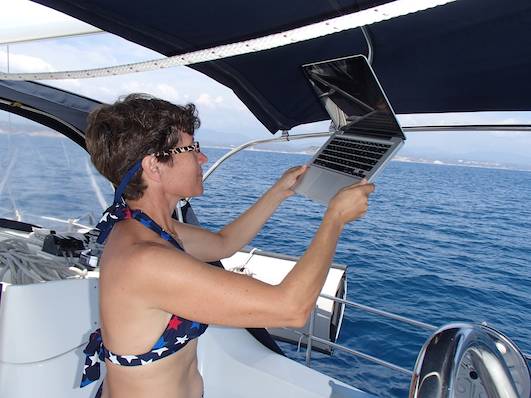
Internet access on a boat at sea in a foreign country is a trip!
Here I hold up my laptop to get a much needed internet weather report while crossing Mexico’s notorious Gulf of Tehuantepec.
It took 21 minutes to download a 604 KB file!!
Putting a Verizon Data Plan on Hold
One handy aspect of Verizon’s plans is that you can put them on hold. We used this feature a lot when we spent months at a time sailing in Mexico because Verizon didn’t offer Mexico access for Jetpacks back in those days.
Seasonal RV travelers may find this comes in handy, as they may not want to use the MiFi Jetpack when they are at home and not out traveling in their RV.
You can put the plan on hold for up to 90 days, at no charge. If you call in again before 90 days is up, you can put it on hold for another 90 days, and so on, indefinitely.
All the days that you put the plan on hold get tacked onto the end of your contract. So, for us, our two year contract during our Mexico travels took nearly three years to fulfill. When you decide to resume the contract, a simple phone call is all it takes and you are back online immediately. There is a nominal charge for re-instating the contract.
Phone Access – Skype
We use a Skype account for all of our phone needs. Skype is best known for making it possible to make free video calls between people who have Skype accounts. Similar to Apple’s FaceTime, this is a fun way to communicate. It also requires a pretty strong internet signal. If the call begins to falter due to a sketchy internet connection, turning off the video will often perk it back up again.

That’s not generally how we use Skype, however. Instead, we use it to call people on their cell phones and land lines. For $2.99 a month we have an annual subscription service with Skype to call any cell phone or landline in the US or Canada for unlimited minutes. These are outbound phone calls only.
To receive incoming calls requires another step: For $2.50 a month, Skype assigned a phone number to our account that accepts voicemail and appears on our friends’ phones when we call them. Skype sends us an email when a new voicemail comes in. If we are on our computer and it is connected to the internet, we receive incoming phone calls just like a regular phone (the computer’s speaker rings, and you click a button to pick up the call). Skype has an app for mobile devices too, so you can do all this with a tablet, iPad or iPod too.
If you don’t sign up for that service, Skype calls will come into your friends’ phones with a mystifying number that is unrecognizable. We did this for four years, and it was okay. It was a little awkward not having a call-back number when calling a business, but we let them know that we checked our email frequently, and most companies were happy to get back to us via email instead of a phone call. Our friends eventually knew that if a weird number came in on their phone, it was probably us calling!
Tricks for Making Skype Calls
Skype is pretty good for phone calls, but the connection is not always perfect. We’ve gotten used to tipping our MacBook Pro laptops so the microphone is a little closer to our mouths than when it’s down in our lap. The person on the other end is on speaker phone, which can be nice for calling family and friends, if they don’t mind. However, when making an important call to a company, using earbuds makes it easier to hear the other person and takes them off speaker phone if you are in a somewhat public place.
In general, our internet download speed is faster and better than our upload speed, and this affects Skype. Oftentimes, we can hear the person on the other end of the phone much better than they can hear us. One way to improve things is to make sure only one device is on the internet via the MiFi jetpack. So, if Mark wants to make a call, I have to do something local on my laptop and stop using the internet, and vice versa.
It’s also important that no other internet applications are running on the computer that is making the call. That means turning off the email application, shutting down all browsers and quitting out of anything else that might unexpectedly access the internet and disrupt the phone call.
WeBoost Drive 4G-X RV – Getting More from our Internet Signal? Or Not!
In January 2018 we were given a WeBoost Drive 4G-X RV cellular signal booster to test. We were excited because we had not had good luck with our Wilson Booster several years prior (our experiences are described in the ARCHIVE section below).
We explained to the good people at Wilson Electronics that the older product had not worked for us, but that we would be overjoyed to let our readers know if the new product were better.
The WeBoost Drive 4G-X RV booster can be powered by either 12v DC or 120v AC and it consists of three major components that get wired together:
- An External Antenna that goes on the ladder of the RV
- A Booster that is installed inside the RV
- An Internal Antenna that communicates with the Verizon MiFi Jetpack
The external antenna must be installed as high as possible on the RV. While driving it must be lower than highway requirements for vehicles (generally 13′ 6″). While parked it could be raised higher. It must also be installed as far from the Booster as possible (a 20′ cable is supplied).
The Internal Antenna must be installed inside the RV as close to the Verizon MiFi Jetpack as possible.
A full installation consists of mounting each item in a permanent location, running a cable from inside the RV to outside (likely near the ladder so the external antenna can be mounted to the top of the ladder) and dressing the wires between all three components. We decided that prior to doing a full installation and mounting the components and dressing the wires, we would do a test installation to see how the booster improved our internet signal.
We test the booster by positioning the External Antenna in two locations. The first position was above the crown molding of a slide-out inside the trailer (not a good spot at all, but adequate for a dry run). The second position was outside, where the External Antenna is supposed to be. Mark stood on the roof of the trailer and held the External Antenna above his head. This positioned it more than 7′ above the RV roof, higher than we would be able to position it with a permanent installation.
The Booster rested on the dining table.
The Internal Antenna sat next to the Verizon MiFi Jetpack which was positioned in a window.
We had a 3G signal that was a steady 4 bars. We had been working with this internet connection for a few days, surfing the web, sending and receiving email, listening to internet radio, downloading YouTube videos, making Skype calls (without video) and updating this blog.
The signal was adequate, but a faster speed would have been awesome.
Using a very pedestrian and low tech method of testing the booster, we ran several speed tests using the website speedtest.net. We tested these situations:
- Test 1: Booster off
- Test 2: External Antenna positioned on top of a slide-out INSIDE the RV (not the recommended placement)
- Test 3: External Antenna held overhead while standing on the roof of the RV (higher than it would be if we installed it permanently)
The results can be seen in the following three screenshots.
The speed did not change significantly and, in our opinion, the changes were probably within the margin of error.

Booster turned off.

External antenna positioned in a high place inside the RV.

External antenna positioned 7′ above the roof of the RV
For the non-tech folks out there who don’t have a feeling for “how fast” a particular Mbps upload or download speed is, the following image shows the numbers for a “blindingly fast” signal we got on our Verizon MiFi Jetpack in a completely different location without a booster.
In numbers the difference is 16+ versus 1+ Mbps for download speeds and 17+ versus 0.3 Mbps for upload speeds. That is pretty dramatic!
So, this is the “feeling” difference between “Wow, this is FAST” and “Hmmmm…I can do what I’ve gotta do if I drink a cuppa joe while I wait, but I sure wish there were a way to make it faster.”

A “blindingly Fast” signal while we were camped in a completely different state.
This is for comparison to give you a feel for the numbers just in case Mbps aren’t your thing.
As a final test, while Mark patiently stood on the roof holding the external antenna overhead, I tested using the internet for basic surfing, email, modifying our website and video downloading, the things we typically do on the internet. The difference in speed was not noticeable.
This is not scientific testing and we did not measure decibels or anything fancy. However, the bottom line for us when we use the internet is how fast it FEELS as we do whatever we are doing, not how fast some numbers tell us it is. What this showed us is that even a 100% improvement of Really Lousy may turn out to be just A Little Less Lousy. What you really need is a rock solid 1,000% improvement or more.
In the end, we decided that rather than do a permanent installation we would simply return the unit. So, as of the conclusion of this booster test, we still access the internet using our MiFi Jetpack without using any kind of booster.
ARCHIVE – Wilson Booster – Getting More from our Internet Signal – Kinda
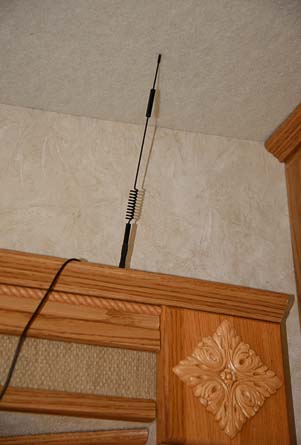
The higher the antenna, the better.
For about a year (in 2014) we used a Wilson Sleek 4G Cell Phone Booster which we have permanently mounted in a cabinet alongside a cigarette lighter outlet. We haven’t used it at all for the past few years and we haven’t missed it. However to keep this page complete, our experiences with it are described below.
The Wilson Booster connects to a Wilson 800/1900 Magnet Mount Antenna. This combo works okay, however, these signal boosters do much more for 4G signals than they do for 3G signals, and we have 3G signals quite a bit of the time. One note: according to Wilson, the number of bars on the MiFi unit doesn’t necessarily increase even though the signal is improved by the booster. A fun way to see how fast your internet signal is and to keep track of the speeds in different places is to use SpeedTest.Net.

It’s “grounded” as per Wilson’s recommendation, but the signal isn’t as good this low down.
The folks at Wilson told us it was very important to have the antenna sitting on a piece of metal for grounding purposes, so we bought their suction cup mounted Accessory Kit for Grounding. Unfortunately, we haven’t found a good place to mount the antenna with this suction cup plate because the wires are so short. Someday Mark might replace our outside (and rarely used) radio antenna with the Wilson antenna, but we haven’t done that yet.
Wilson also told us that simply placing the antenna on a 5″ x 5″ sheet of ferrous metal would do the trick, and we searched around for something and discovered our cast iron skillet fit the bill.
We did tests with the antenna to see how much having a grounding plate seemed to matter. We placed the antenna near the ceiling above our slide-out without a metallic plate under it, then set it on our big frying pan on our kitchen counter, and lastly set it on the roof of our truck.
We found having the antenna higher in the air near the ceiling above our slide-out was much more important than placing it on metal.
Internet Portability – Driving Tactics and Electronic Maps
Siri — ahhhh. Although we don’t have an iAnything, I am in love with the little Apple genie, Siri, who lives inside iPhones and iPads. However, after lots of soul searching about whether Siri’s companionship would make me happier in our travels, so far I’ve decided that it wouldn’t.
Instead, I get to be Mark’s Siri as he drives, and that’s not a bad gig. He does all the driving in our family (I did almost all the helmsman duty on our boat, so it’s pretty fair). To help out with the RV navigation, I bring the MiFi jetpack and laptop with me into the truck’s passenger’s seat, and I use Google Maps to figure out where we’re going. I don’t get the nifty icon that shows me where we are, so sometimes I have some frantic moments trying to deduce our exact location, but once I’ve got it, I call out the instructions for how to get from here to there.
Our 2016 Ram 3500 truck has a factory installed dash-mounted GPS, but its user friendliness pales by comparison. Occasionally when I’m confused/lost, I use it to get the GPS coordinates for where we are and then plug those into Google Maps.
So, the overall functionality of a smartphone or tablet is there for us on the road, it’s just a whole lot more clunky.
Using a SmartPhone or Tablet as a Hotspot and More
When our Mifi Jetpack died, I thought the only solution was to get another one. Not so. I have since learned that we could have taken the SIM card out of our old jetpack and put it into a glistening new iPad. We wouldn’t have had to sign up for another 2 years with Verizon when we replaced our dead MiFi jetpack either (which we did when we upgraded to the new MiFi jetpack), since our contract was tied to the SIM card. We could have simply continued on our old plan until it ran out four months later and then reassessed our situation.
Internet Access Resources for RVers
The Internet Bible for RVers
For us — for now — we’ll keep doing what we’ve been doing since it works just fine. In all likelihood, however, our simplistic and minimalistic methods are not getting you fired up with excitement.
As I mentioned above, the Mobile Internet Handbook (available on Kindle and in Paperback) by Chris Dunphy and Cherie Ve Ard is the most thorough resource available and is an absolute necessity for anyone that wants to get technical on the road. Prior to starting their full-time RV adventures, Chris was a mobile technology expert, working as Director of Competitive Analysis for Palm and PalmSource (the companies behind the Palm Pilot and Treo). He studied every aspect of mobile phone and tablet technologies and is using that expertise to help RVers today.
The detail this book goes to is staggering. From explaining nationwide versus regional cellular data carriers to getting into the nitty gritty of what “roaming” is all about, and what hotspots and routers really are, to discussing cellular frequency bands and the all important topic of security, this book covers it all.
What’s better, Chris and Cherie continue the discussion and keep it current at their RV Mobile Internet Resource Center, with an accompanying public Facebook discussion group. They are also keeping a list of RV internet strategy blog posts that describe various real-life technology setups that RVers are using. They even offer personal advising sessions where you can find out what the best solution is for your unique situation.
Of course, all of this technology is changing daily. When we started RVing full-time in 2007, we got by with pay phone cards and free WiFi at coffee shops. We were unaware in those days (although we had our suspicions) that cell phones weren’t nearly as smart as their progeny would soon be, and we had no idea just how far the industry would come.
In just a few scant years everything has changed, and who knows where the future will take us!
Subscribe
Never miss a post — it’s free!
For more info on Verizon data plans and Skype, check out these links:
Below are some of our most POPULAR POSTS (also in the MENUS above)
Buddy - A Journey in Spirit - The story of an event that changed our lives forever.
ARTICLE INDEXES
- RV Tech Tips Articles - A one page index of links to all our RV Tech Tips, RV Upgrades & RV Maintenance articles.
- RV Lifestyle Tip Articles - An index of links to all our RV Lifestyle Tips (finances, boondocking, major repairs, work/jobs, etc.)
- Solar Power Articles - Overview and tutorial articles for how to design and install solar power on an RV or boat
- Product Reviews - An index of links to all of our Product Reviews
RV UPGRADES, SYSTEMS & TIPS
MONEY
FULL-TIME RV LIFESTYLE
- RV Boondocking - Tips for how to live in an RV off the grid
- Which RV Is Best for Full-Time Living? - Transitioning from a house to an RV - Which RV makes the best home?
- Truck Camper Pros and Cons - The GOOD, the BAD and the UGLY!
- Full-time RV Lifestyle Tips - Full-time RVing Logistics - Mail, Domicile, Insurance, Warranties, Saving Money at RV Parks
- Toy Hauler Life - What's it like to live in an OPEN BOX Toy Hauler?
- What are the MOST IMPORTANT FEATURES in a Full-time Fifth Wheel? - For anyone planning to live in an RV!
- Internet & Phone Access for RVers - An inexpensive, minimalist solution for internet access on the road
- RV Dump Stations & Composting Toilets - How to do the dirty deed at the RV dump PLUS RV Composting Toilet tips
- Choosing a Trailer for Full-time RVing - Why the payload capacity is so important
- Learn RVing the Fun Way!! - Go Cheap, Go Small, Go NOW and have a blast in little RV!
- Free RV Campsites - Resources for locating campsites for boondocking
- Glimpses of the Full-time RV Life - Anecdotes from the road and essays about living the RV dream.
- Travel Photography Tips! - All the cameras, gear, books, blogs and tools we used to learn to take great pics!
GEAR STORE
- Gear Store - A list of the goodies, equipment and gear we've found useful in our RV lifestyle!
Our most recent posts:
More of our Latest Posts are in the MENU.
New to this site?
Visit RVers Start Here to find where we keep all the good stuff. Also check out our COOL NEW GEAR STORE!! *** CLICK HERE *** to see it!